
Junban Desk — user guide
Junban (順番 — “order,” “sequence,” the proper arrangement of things: the logical order in which items or actions should occur).
Junban Desk replaces the default Jira Service Management (JSM / Customer Service Management) queue views with a single, focused agent workspace: a “needs action” ticket table on the left and an inline ticket detail pane on the right. Agents triage, reply, and resolve without ever leaving the queue — a Zendesk-style agent workspace for JSM.
Two editions
Junban Desk comes in two editions that share the same workspace and behave almost identically — the differences are in how you install and run them, not in day-to-day use.
- Marketplace edition — installed from the Atlassian Marketplace and runs entirely inside Atlassian on Forge. (Listing coming soon.)
- Cloud edition — a hosted app you sign in to at app.junbandesk.com. It runs on Cloudflare and connects to your Jira site with Atlassian OAuth. Available now.
Both run every Jira action as you, so Jira’s own permissions always apply (see Permissions).
Which edition?
| Marketplace edition | Cloud edition | |
|---|---|---|
| Runs on | Atlassian Forge, inside your site | Cloudflare, hosted (outside Atlassian) |
| How you get it | Atlassian Marketplace (coming soon) | Sign in at app.junbandesk.com |
| Sign-in | Already signed in to Jira | Atlassian OAuth 2.0 (3LO) consent, once |
| Where it appears | Project sidebar, under Queues | The hosted app, with a project picker |
| Project types | Jira Service Management | Classic JSM and Customer Service Management |
| Data outside Atlassian | None — see the privacy policy | Hosted externally; see app.junbandesk.com/privacy |
| SLA column | Yes (opt-in “Time to resolution” column) | Not available |
| Support | Collaboration Services | Same, plus app.junbandesk.com |
Everything below applies to both editions unless a Marketplace or Cloud note says otherwise.
The workspace
Open Junban Desk and you get two panes; drag the divider between them to resize, or double-click it to reset.
- Marketplace: open any Jira Service Management project and choose Junban Desk in the project sidebar, under Queues.
- Cloud: sign in at app.junbandesk.com and pick a project from the project picker.
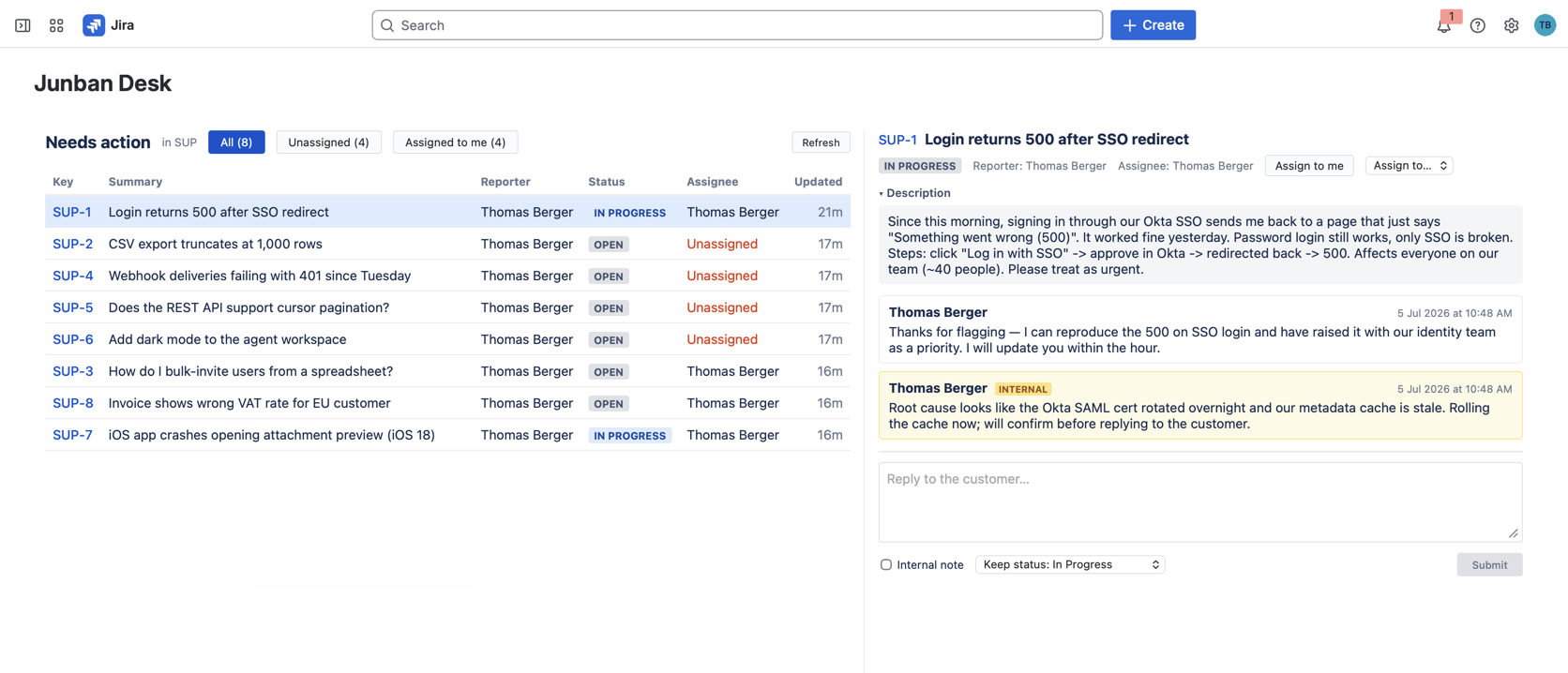
Marketplace edition shown. The Cloud edition looks the same, with a hosted sign-in and a project picker in place of the Forge sidebar entry.
The “needs action” queue
The table shows every open ticket (work item) in the project that is not waiting on the customer, oldest update first — so the ticket that has waited longest is at the top. Tickets that are resolved or in a “Waiting for customer” status are hidden automatically.
The queue refreshes itself every 30 seconds in the background (paused while the browser tab is hidden), and you can refresh manually with the Refresh button.
Filters
Three filters, applied instantly and remembered across reloads:
- All — every needs-action ticket
- Unassigned — tickets nobody owns yet
- Assigned to me — your tickets
Ticket detail pane
Select a ticket to open it inline:
- Description — collapsible, with long pasted URLs shortened
- Comment thread — the full conversation, oldest first. Internal agent notes are visually marked and never visible to the customer.
- Attachments — preview images and files attached to the ticket inline.
- Assignment — assign the ticket to yourself or any assignable user from the dropdown, or unassign it.
If someone else updates the ticket while you have it open, the pane notices on the next background refresh and reloads itself, so you never reply to a stale thread.
Replying
Type your reply at the bottom of the detail pane and pick:
- Reply to customer — a public comment the customer sees
- Internal note — visible to agents only
Next to the submit button is a status-at-submit dropdown (Zendesk style): leave the status unchanged, or pick any workflow transition to apply together with your reply — for example “Reply and set to Waiting for customer” in one click.
Permissions
Every action Junban Desk performs runs as you, through Jira’s own REST API. You can only see and do what your Jira permissions already allow — the app adds no permissions of its own and never acts on your behalf when you are not using it. The exact OAuth scopes each edition requests are listed on the installation page.